Settings
Go to WPHEKA > Request For Quote. Administrators and shop managers can open it. The page has three tabs: Settings, Requests and Help.
Change what you need, then click Save changes. Saving also clears the page cache of common caching plugins (such as WP Rocket, W3 Total Cache, WP Super Cache and LiteSpeed Cache), so product and shop pages show the change straight away.
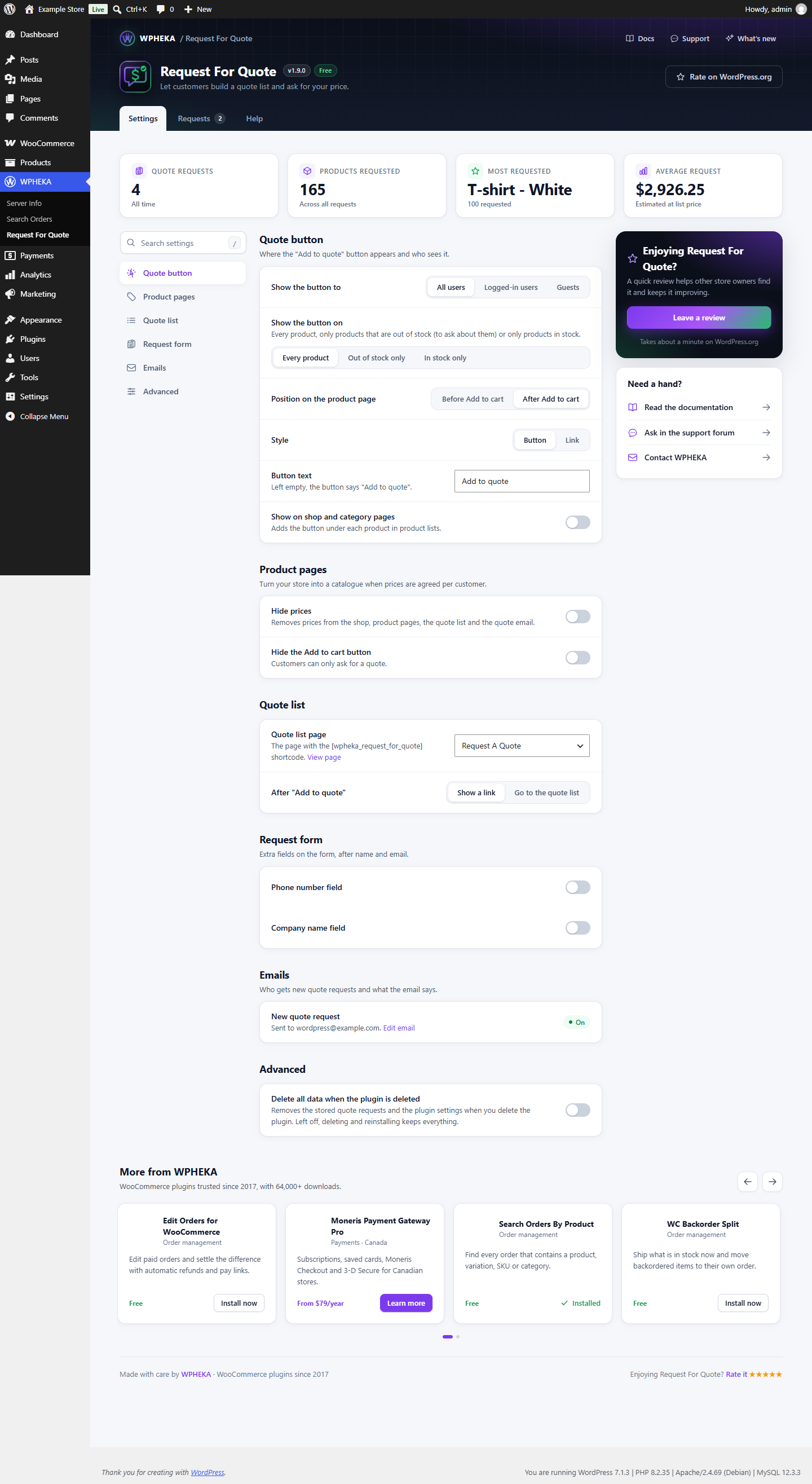
The numbers at the top
| Card | What it shows |
|---|---|
| Quote requests | Every request sent since you installed the plugin. After a full month of stored requests it also shows the change against last month. |
| Products requested | The total quantity of products in stored requests |
| Most requested | The product with the highest total quantity requested, with that quantity |
| Average request | The average value of a request at your list prices |
Requests are stored from version 1.9.0, so the last three cards count from then.
Quote button
Where the "Add to quote" button appears and who sees it.
| Setting | Options | Default |
|---|---|---|
| Show the button to | All users, Logged-in users, Guests | All users |
| Show the button on | Every product, Out of stock only, In stock only | Every product |
| Position on the product page | Before Add to cart, After Add to cart | After Add to cart |
| Style | Button, Link | Button |
| Button text | Any text. Left empty, the button says "Add to quote". | Add to quote |
| Show on shop and category pages | On or off. Adds the button under each product in product lists. | Off |
Out of stock only is useful to let customers ask about products you can't sell right now.
Product pages
Turn your store into a catalogue when prices are agreed per customer.
| Setting | What it does | Default |
|---|---|---|
| Hide prices | Removes prices from the shop, product pages, the quote list and the quote email | Off |
| Hide the Add to cart button | Customers can only ask for a quote | Off |
See Catalogue mode.
Quote list
| Setting | What it does |
|---|---|
| Quote list page | The page with the [wpheka_request_for_quote] shortcode. View page opens it. |
| After "Add to quote" | Show a link to the quote list (default) or Go to the quote list straight away |
The settings can't be saved without a quote list page. If none is chosen, the page says: "Request for quote page is not set. Choose the page that holds your quote list, then save again."
To use another page, add the [wpheka_request_for_quote] shortcode to it, publish it and choose it here.
Request form
Extra fields on the form, after name and email.
| Setting | Default |
|---|---|
| Phone number field | Off |
| Make the phone number required | Off. Only available while the phone number field is on. |
| Company name field | Off |
Name, email address and message are always on the form and always required.
Emails
New quote request shows whether the quote email is on and where it goes.
- On: "Sent to" and the address.
- Off: quote requests cannot be sent. Turn the email on to receive them.
Click Edit email to open WooCommerce > Settings > Emails > Request For Quote:
| Setting | Default |
|---|---|
| Enable/Disable | On |
| Recipient(s) | Your site's admin email. Separate several addresses with commas. |
| Subject | [New Quote Request] |
| Email heading | New quote request |
| Email type | HTML |
WooCommerce's email preview shows a sample quote with two of your products.
Advanced
Delete all data when the plugin is deleted (default: off): removes the stored quote requests and the plugin settings when you delete the plugin. Left off, deleting and reinstalling keeps everything.
Deactivating the plugin never deletes anything.
Help tab
Links to the documentation, the support forum and the changelog.