How quote requests work
What the customer does
-
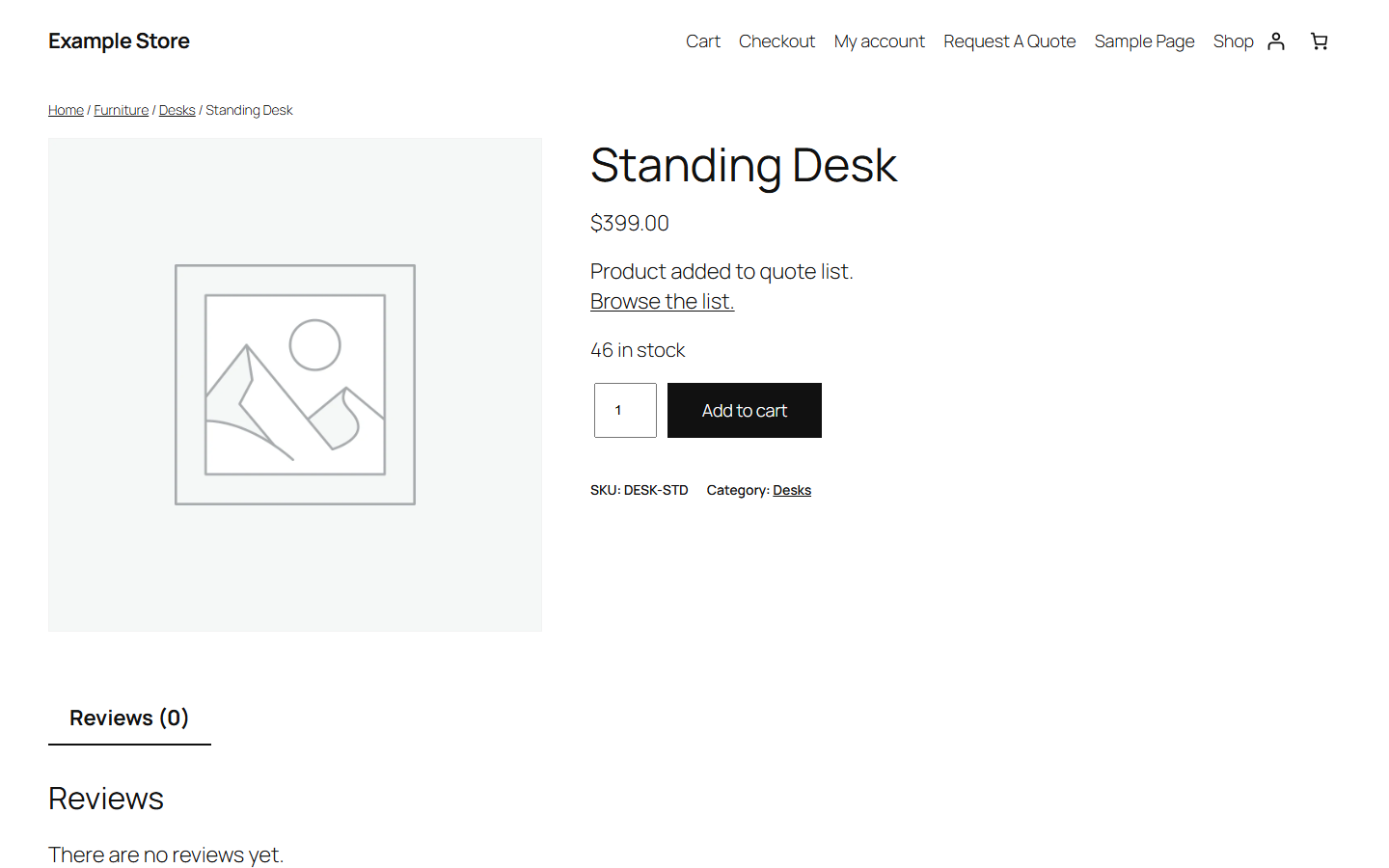
Adds products. On a product page, the customer clicks Add to quote. They see "Product added to quote list." and a Browse the list link. Depending on your settings, they go straight to the quote list instead. Adding the same product again shows "Product already in the quote list."
-
Checks the list. The quote list page shows each product with its quantity. Unless prices are hidden, it also shows the price and subtotal. The customer can change quantities and click Update list or remove a product with ×.
-
Sends the request. Below the list is a form:
| Field | Required |
|---|---|
| Name | Yes |
| Email address | Yes |
| Phone Number | Only when you turn it on; required only if you choose |
| Company Name | Only when you turn it on; never required |
| Message | Yes |
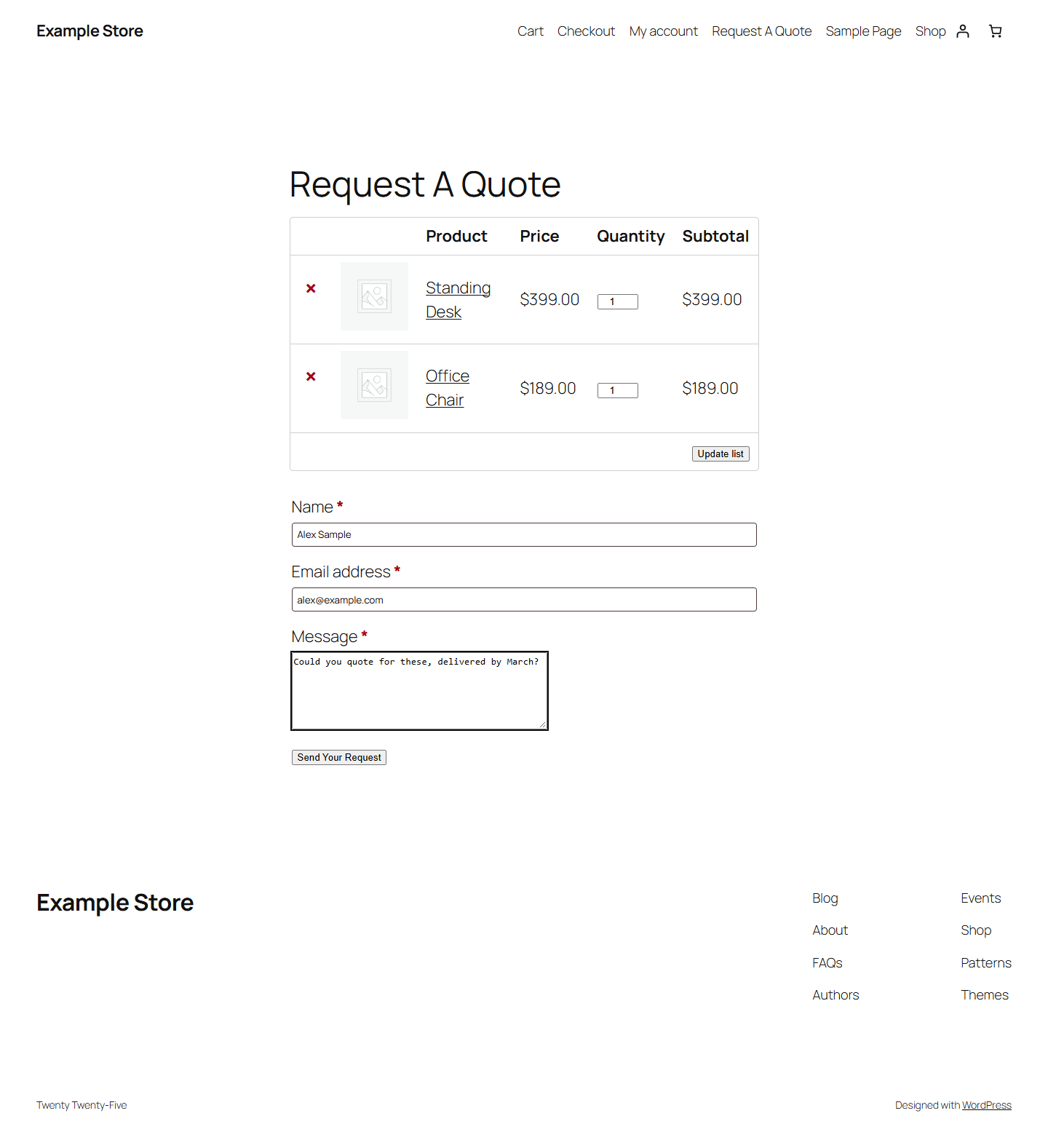
For a logged-in customer, name and email are filled in from their account.
After Send Your Request the customer sees "Your request has been sent successfully." and their quote list is emptied.
The quote list is kept in the visitor's browser session for up to 48 hours. Customers don't need an account.
What you get
- An email with the customer's details, their message and the products with quantities (and prices, unless hidden). Reply to the customer from your own email.
- A stored request on the Requests tab, with the status New.
The plugin does not send the customer a copy and does not create an order. You agree the price with the customer yourself, for example by email or by creating an order for them in WooCommerce.
Which products get the button
| Where | Product types |
|---|---|
| Product pages | Simple and variable products |
| Shop and category pages (when turned on) | Simple, subscription and external products |
For a variable product, the customer chooses the options first and the chosen variation is added.
The button is not added to the related products, up-sells and cross-sells lists.
Your settings decide who sees it and on which products: see Quote button.
Catalogue mode
With Hide prices and Hide the Add to cart button both on, your store works as a catalogue:
- prices are removed from the shop, product pages, the quote list and the quote email;
- the Add to cart button is removed from product pages and from shop and category pages.
On shop and category pages, variable, grouped and external products keep their usual button (such as Select options), so customers can still open them.