Settings
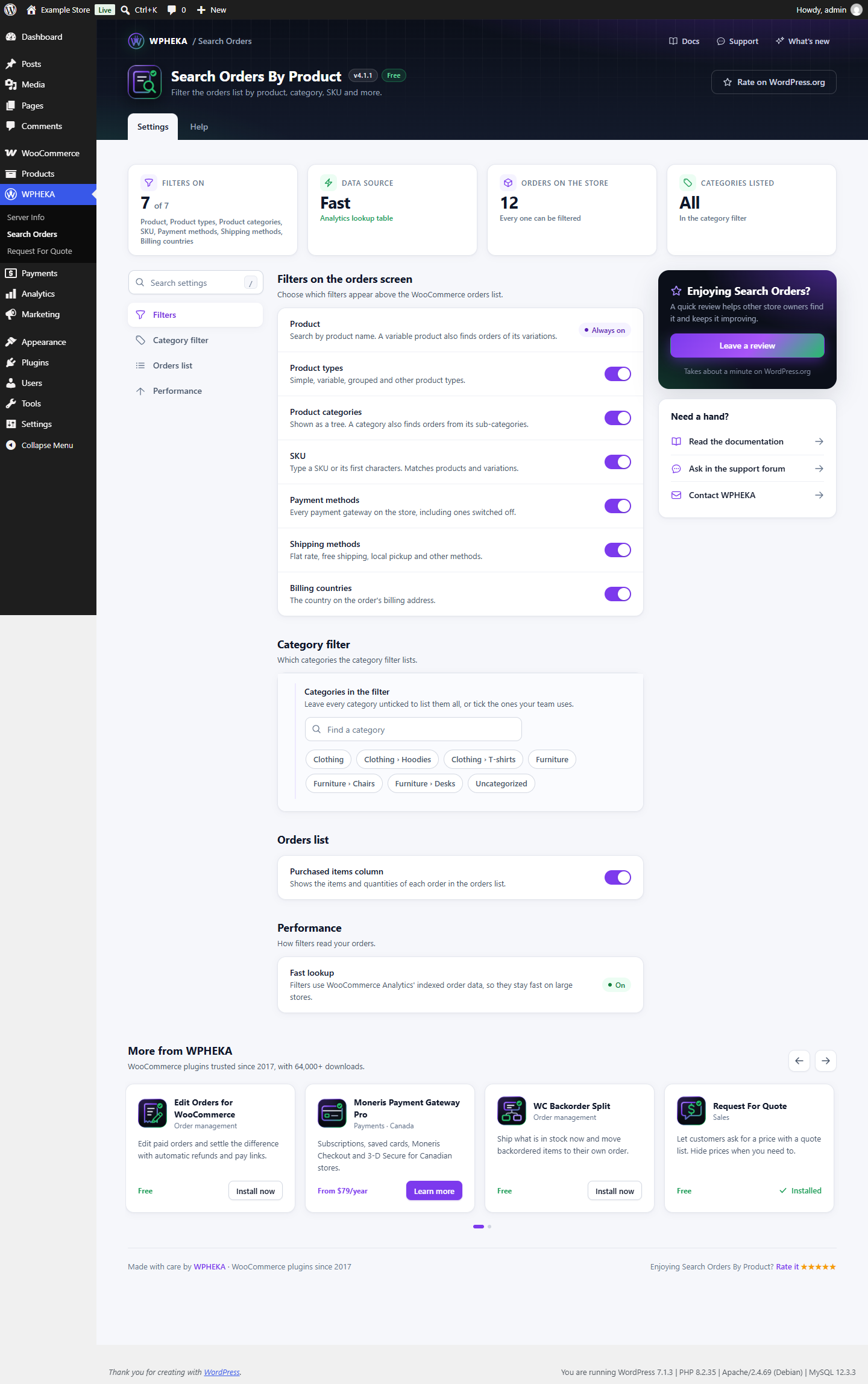
Go to WPHEKA > Search Orders. Administrators and shop managers can open it. The page has two tabs: Settings and Help.
Change what you need, then click Save changes.
:::note Before 4.1.0 The settings were under WooCommerce > Settings > Advanced > Search orders by product. That section now only links to the new page. Your settings were kept. :::
The numbers at the top
| Card | What it shows |
|---|---|
| Filters on | How many filters show on the orders screen and which ones |
| Data source | Fast when filters use WooCommerce Analytics' lookup table, Direct when they read order items |
| Orders on the store | How many orders the store has. Refreshed every 12 hours. |
| Categories listed | All or the number of categories the category filter lists |
Getting started
Until you have done all three steps, a short list shows:
- Choose your filters: done once you save this page.
- Turn on fast lookup: see Performance.
- Filter the orders list: done after your first filtered search.
Close it with its X to hide it for you.
Filters
Filters on the orders screen: choose which filters appear above the orders list.
| Setting | Default | Description on the page |
|---|---|---|
| Product | Always on | Search by product name. A variable product also finds orders of its variations. |
| Product types | On | Simple, variable, grouped and other product types. |
| Product categories | On | Shown as a tree. A category also finds orders from its sub-categories. |
| SKU | Off | Type a SKU or its first characters. Matches products and variations. |
| Payment methods | Off | Every payment gateway on the store, including ones switched off. |
| Shipping methods | Off | Flat rate, free shipping, local pickup and other methods. |
| Billing countries | Off | The country on the order's billing address. |
See Filtering the orders list for how each one works.
Category filter
Categories in the filter: which categories the category filter lists. Leave every category unticked to list them all. To list only some, tick the ones your team uses. Use Find a category to search a long list.
This setting applies while Product categories is on.
Orders list
Purchased items column (default: on): shows the items and quantities of each order in the orders list.
Performance
Fast lookup shows how the filters read your orders.
- On: filters use WooCommerce Analytics' indexed order data, so they stay fast on large stores.
- Off: filters read order items directly. They still find every order, but can be slower on a large store.
To turn it on, import your historical data in WooCommerce > Settings > Advanced > Features or Analytics > Settings. The plugin checks again within 12 hours.
Orders changed since the last check are always matched against the order items too, so a new order is never missed while WooCommerce catches up in the background.
Help tab
Links to the documentation, the support forum, the changelog and the developer hooks.