Filtering the orders list
Go to WooCommerce > Orders. The plugin's filters sit on their own line below WooCommerce's filters.
- Choose a value in one or more filters.
- Click Filter.
- To start again, click Clear filters. The link shows while a filter is in use.
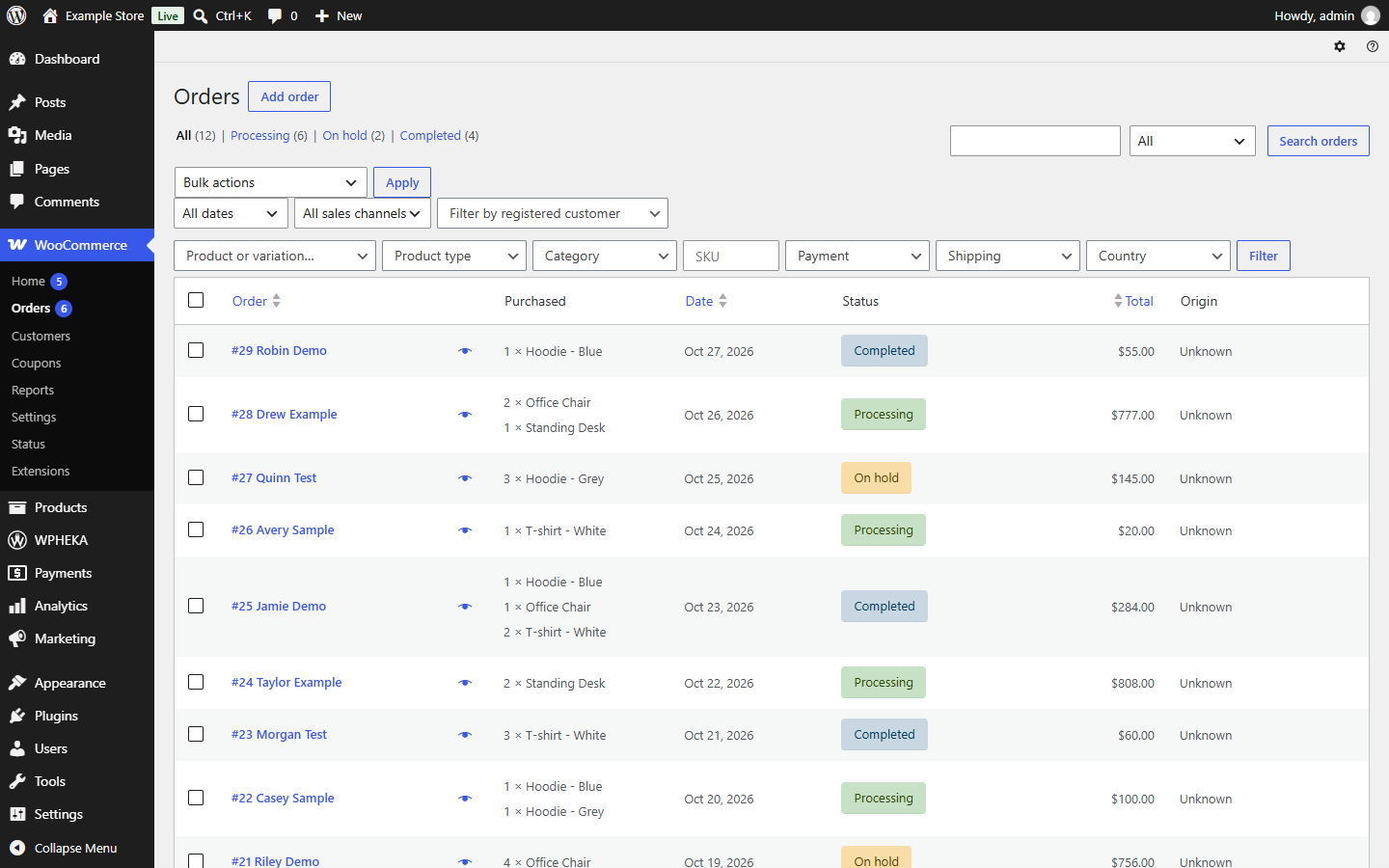
Filters work together: an order must match every filter you set. They also work with the status tabs (such as Processing), the search box and the month filter.
The filters
| Filter | Shown by default | What it finds |
|---|---|---|
| Product or variation | Always | Orders with the product. Type part of the name and pick it from the list. |
| Product type | Yes | Orders with a product of that type, such as simple, variable or grouped |
| Category | Yes | Orders with a product in that category or any of its sub-categories |
| SKU | No | Orders with a product whose SKU matches or starts with what you type |
| Payment | No | Orders paid with that payment method |
| Shipping | No | Orders with that shipping method |
| Country | No | Orders whose billing address is in that country |
Switch filters on or off under WPHEKA > Search Orders.
Product or variation
- Pick a variable product to find orders of any of its variations.
- Pick a single variation, such as "Hoodie - Blue", to find only that variation.
Category
The list shows categories as a tree. Picking a parent category also finds orders from its sub-categories. You can limit which categories the list shows in Settings.
SKU
Type a whole SKU or its start. For example, HOOD- finds every product and variation whose SKU starts with HOOD-.
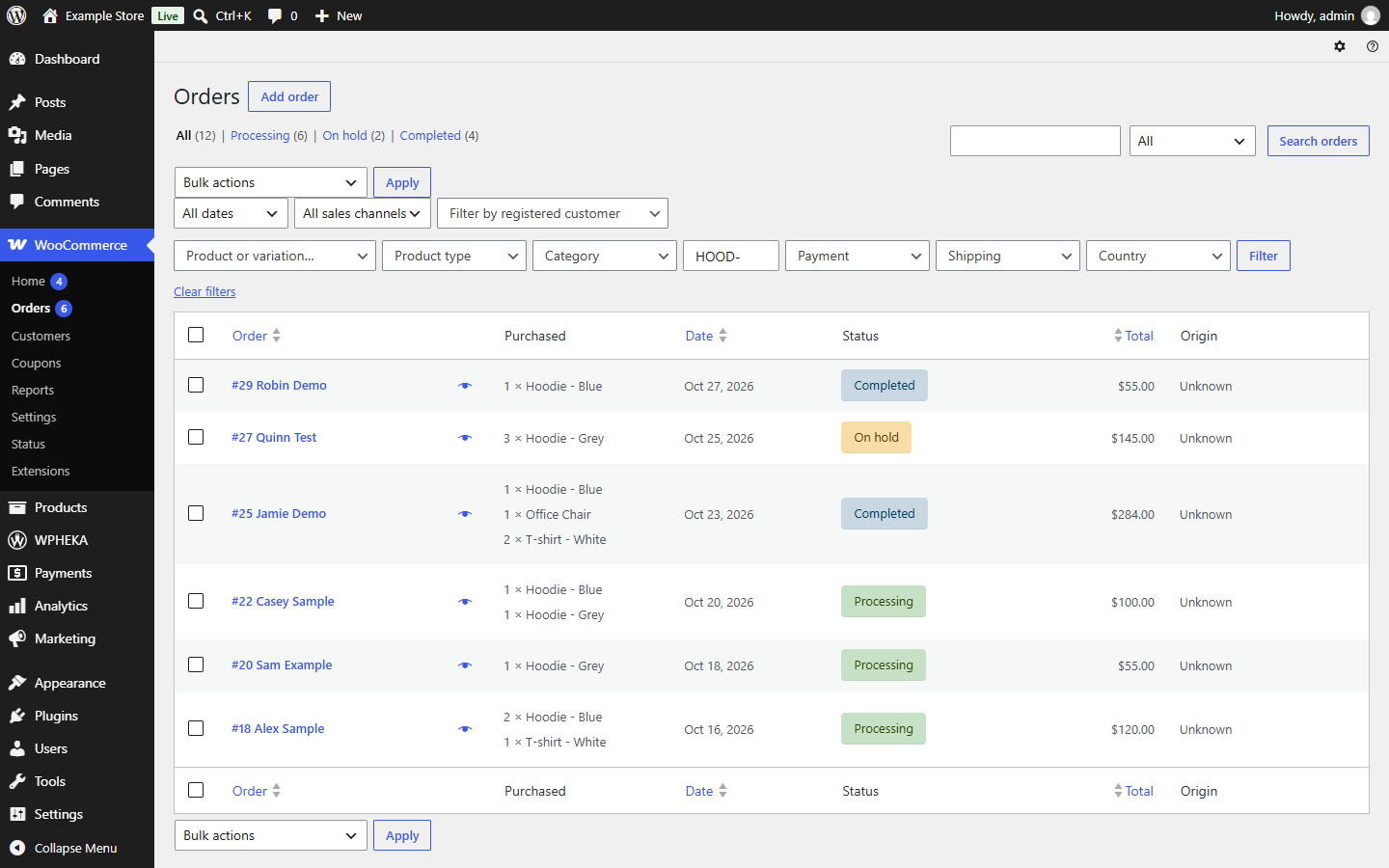
The SKU filter matches each product's current SKU. WooCommerce doesn't save the SKU on the order, so if you change a product's SKU, search by the new one. A search matches at most 1,000 products; type more of the SKU to narrow it.
Payment
The list shows every payment method on the store, including ones that are switched off, so you can still find older orders paid with them.
Shipping
The list shows the shipping methods on your store, such as flat rate, free shipping and local pickup. An order matches when it has a shipping line with that method.
The Purchased column
The Purchased column shows each order's items, for example "2 × Hoodie - Blue". Up to five items show, then "+ N more". You can turn the column off in Settings.
Good to know
- The filters are only on the Orders screen, not on other order lists such as subscriptions.
- In the Trash view the filters are not applied.
- Anyone who can manage orders can use the filters, including shop managers.