Changing the status of every matching order
WooCommerce's own bulk actions only change the orders on the page you can see. Pro changes every order that matches your filters, after showing you how many there are.
- Filter the orders list.
- Click Change status of all matching orders, in the panel or in the summary line.
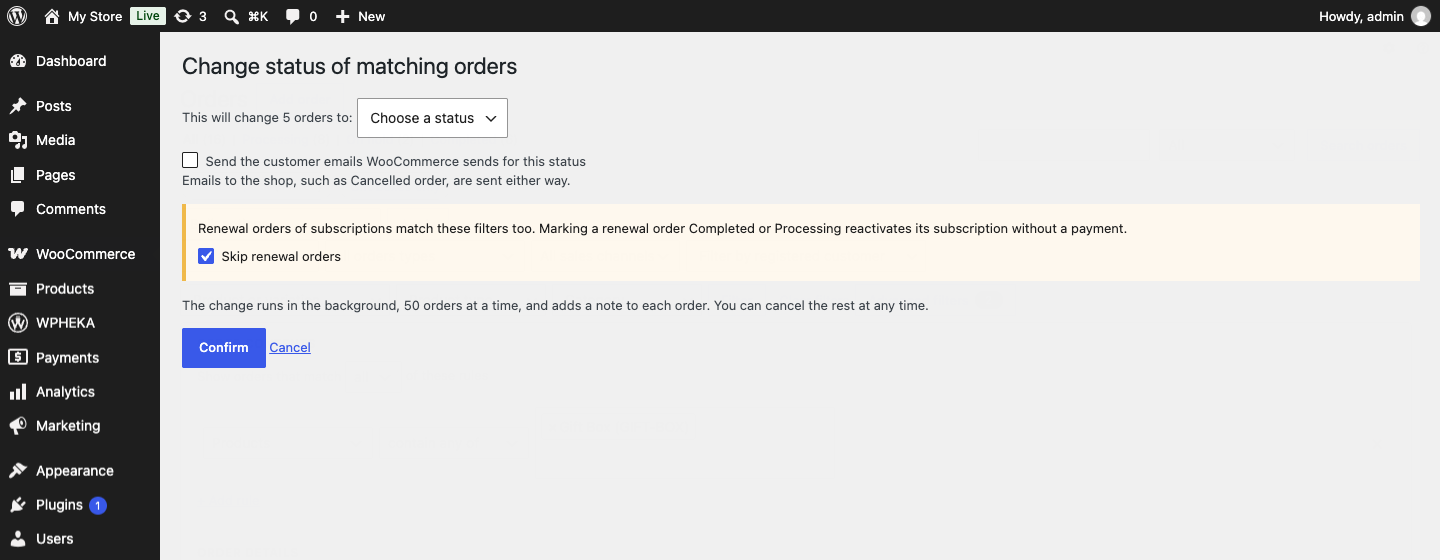
- The next screen shows how many orders will change. Choose the new status.
- Tick Send the customer emails WooCommerce sends for this status only if customers should be told. Emails to the shop, such as Cancelled order, are sent either way.
- Click Confirm.
While it runs
The change runs in the background, 50 orders at a time and adds a note to each order. A notice on the orders screen shows the progress and has a Cancel button that stops the orders not yet changed.
When it finishes, the notice counts the orders changed, those that already had the status, those that no longer matched your filters and any that failed.
Subscription renewal orders
With WooCommerce Subscriptions active, renewal orders can match your filters too. Marking a renewal order Completed or Processing reactivates its subscription without a payment, so Skip renewal orders is ticked by default.
Statuses you cannot set in bulk
Refunded and Draft are not offered. Refunded would record a full refund on every order without paying anything back and WooCommerce deletes draft orders after a day.
Like export, the bulk change is not offered while WooCommerce's search box, the month filter, the registered customer filter or the sales channel filter is in use.