The WPHEKA > Moneris page
Go to WPHEKA > Moneris. Administrators and shop managers can open it. It has three tabs: Settings, Transactions and Help.
Settings
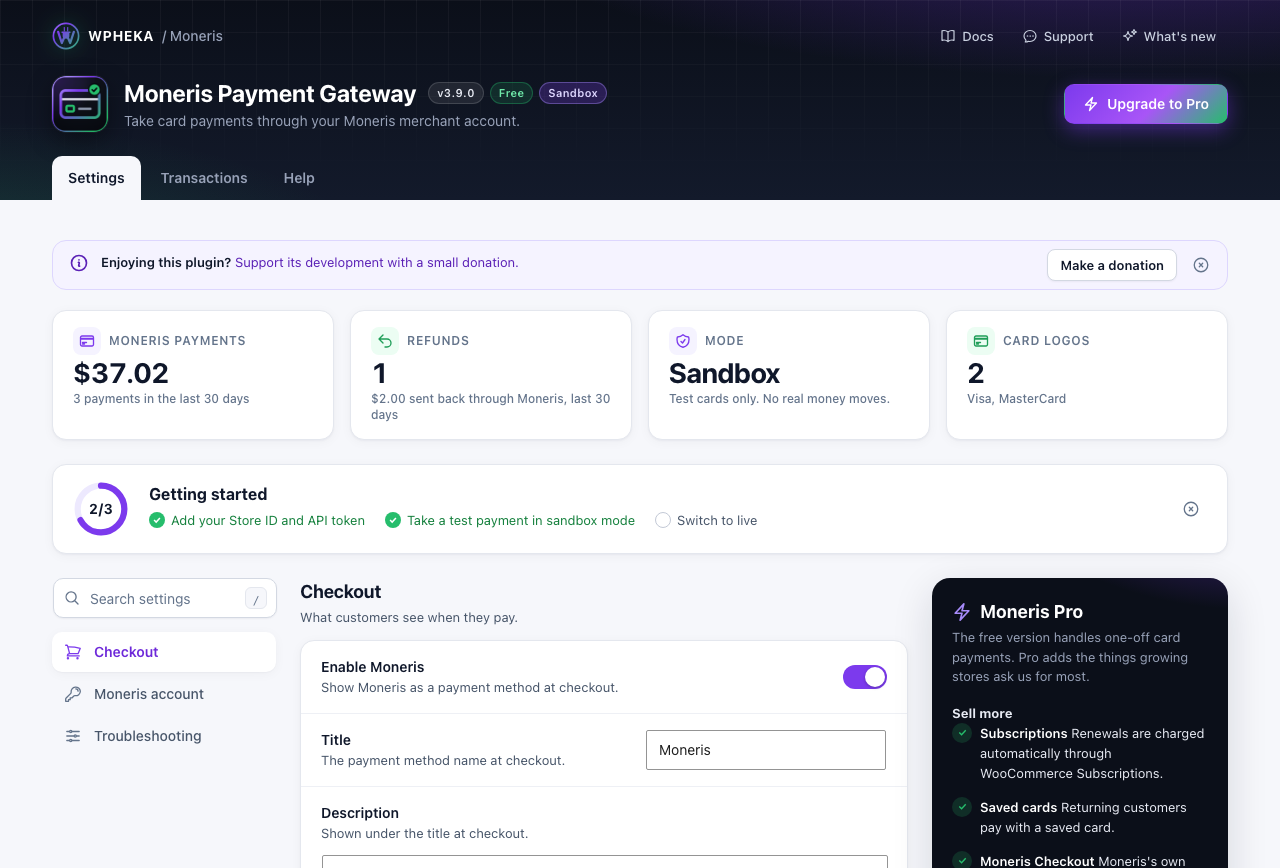
| Section | Setting | What it does |
|---|---|---|
| Checkout | Enable Moneris | Shows Moneris as a payment method at checkout |
| Checkout | Title | The payment method name at checkout |
| Checkout | Description | Shown under the title at checkout |
| Checkout | Card logos | The logos shown next to the payment method: Visa, MasterCard, Discover, American Express, JCB |
| Moneris account | Sandbox mode | Uses Moneris' test environment. Turn it off to take real payments |
| Moneris account | Store ID and API token | Your Moneris credentials, from the Merchant Resource Centre |
| Troubleshooting | Log gateway events | Writes each request and reply to WooCommerce > Status > Logs, source wpheka-gateway-moneris. Turn it on only while you troubleshoot |
Change anything and a bar appears at the bottom of the screen: Save changes saves, Discard puts the values back. Use the search box to find a setting.
The Getting started card follows three steps: add your credentials, take a test payment, switch to live. It disappears when all three are done, or when you hide it.
The numbers
| Card | What it counts |
|---|---|
| Moneris payments | Orders paid through Moneris in the last 30 days and their total, in your store currency. An order counts from the moment Moneris approves it, whatever status it has since (including statuses other plugins add, such as Backordered) |
| Refunds | Refunds sent back through Moneris in the last 30 days and their amount. Refunds you record by hand without Moneris are left out |
| Mode | Sandbox or Live |
| Card logos | How many logos customers see, and which |
The numbers update straight away after a payment, a refund or an order status change.
Transactions
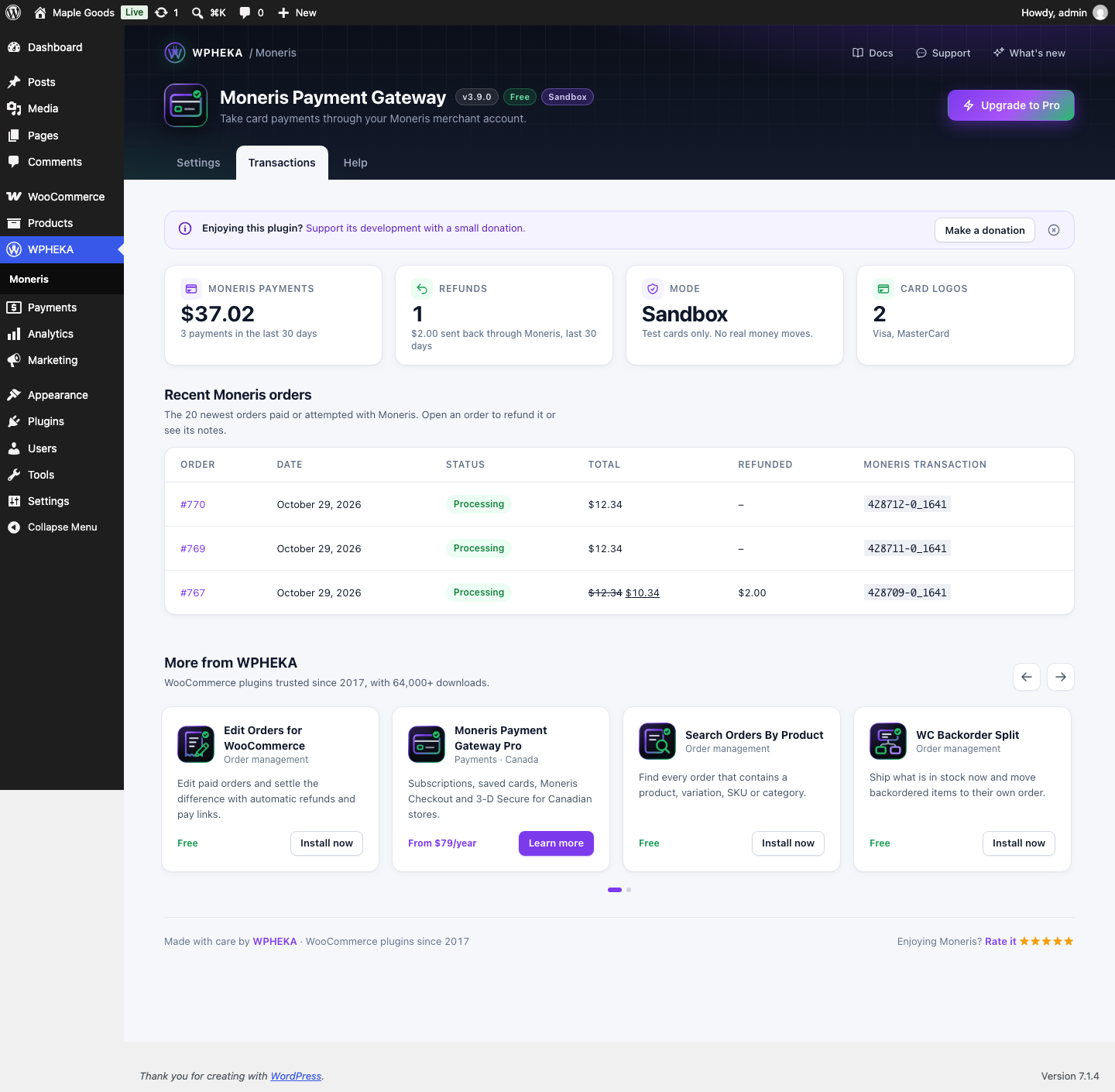
The 20 newest orders paid or attempted with Moneris: the order, date, status, total, amount refunded and the Moneris transaction number. Click an order number to open it, for example to refund it.
Help
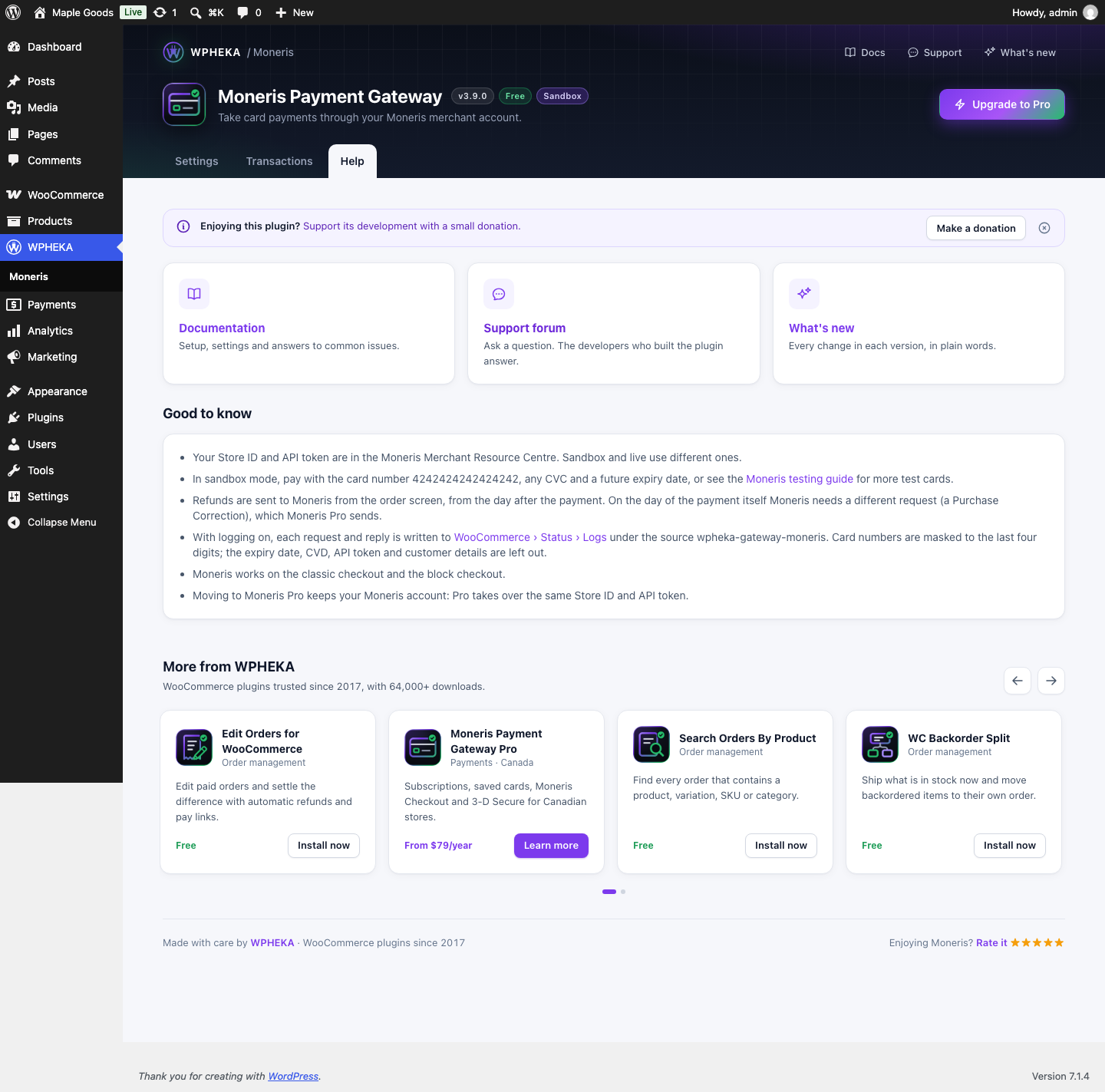
Links to these docs, the support forum and the changelog, with short notes on credentials, testing, refunds, logs and moving to Pro.
Notices
The page shows only its own notices, in place. Notices from WordPress, your theme and other plugins stay on the other admin screens.