Editing a paid order
Open the order in WooCommerce > Orders. The Edit order box on the right has Edit items or address. It shows for paid orders in the statuses you allow (Processing and On hold by default).
If an order can't be edited, the box says why. For example: it is fully refunded, it has an unpaid balance order, its payment is authorized but not captured yet or someone else is editing it.
The editor
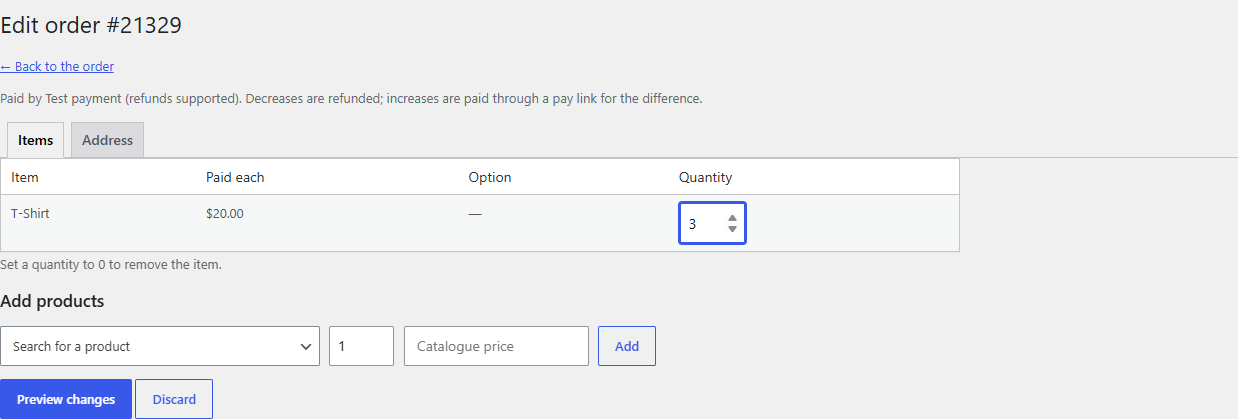
The editor opens on its own page, Edit order #123, with two tabs. Nothing changes until you have seen the preview and clicked Apply changes.
The line under the title says how the money moves: "Paid by Credit card. Decreases are refunded; increases are paid through a pay link for the difference." For cash on delivery: "Paid on delivery: changes adjust the amount to collect."
Items
| Column | What you can do |
|---|---|
| Item | The product. A line that can't be changed says why, for example it already has a refund. |
| Paid each | What the customer paid per unit, discounts included |
| Option | Swap a variation, such as a size or colour. Out-of-stock options can't be picked. |
| Quantity | Change it. Set it to 0 to remove the item. |
Under Add products, search for a product, set the quantity and, if you like, a price each (excluding tax). Leave the price empty to use the catalogue price.
One change per line: a swap keeps the quantity. To change both, make two edits.
Address
Change the shipping address, the billing address or both. The billing email is never changed here. An address change is applied on its own: shipping is re-rated from your shipping zones and tax is worked out again for the new address. If the current shipping method isn't offered at the new address, you choose one.
The preview
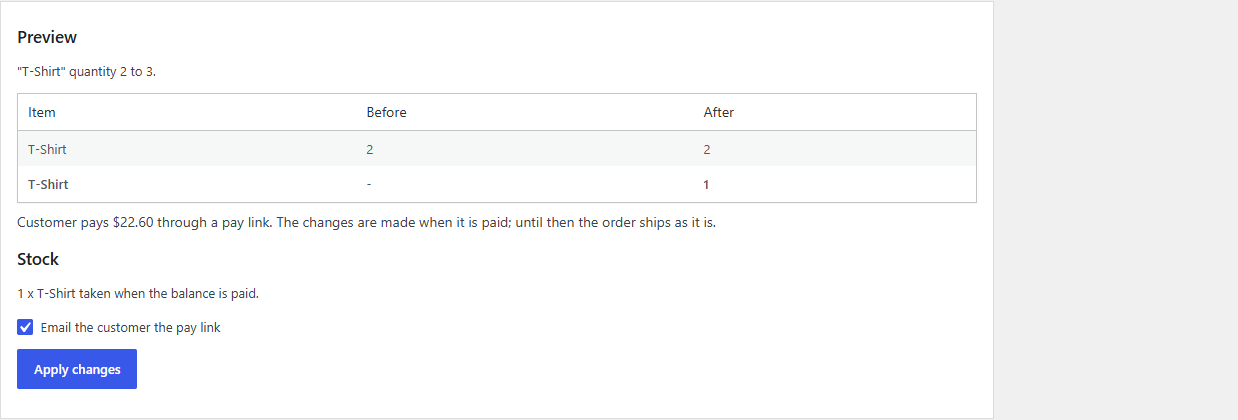
Preview changes shows:
- what changes, line by line, before and after;
- the money: "Refund $12.43 through Credit card.", "Customer pays $35.00 through a pay link." or "No money moves.";
- the stock that moves;
- whether to email the customer.
Click Apply changes to make it. If the order or prices changed since the preview, you are asked to review it again.
How the money is settled
| The change | What happens |
|---|---|
| Costs less | A WooCommerce refund for the difference, through the payment method. Items go back in stock. |
| Costs more | A balance order for the difference. The customer pays it through WooCommerce's pay page with any payment method you offer. When it is paid, the whole change is made, refunds included. Until then the order ships as it was. |
| Same price | Made straight away |
| Paid on delivery | No money moves. The order shows the new amount to collect; an increase goes on a linked order, collected with the original. |
Balance orders
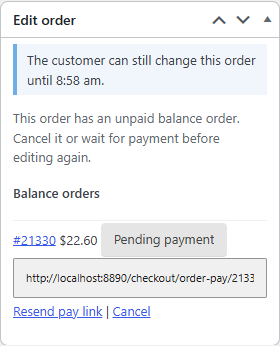
A balance order is a small, ordinary WooCommerce order linked to the original. It shows in the Edit order box with its status and amount. While it is unpaid you can:
- copy the pay link to send it yourself;
- Resend pay link by email;
- Cancel it: the waiting changes are not made.
If the original order is cancelled, refunded or completed, an unpaid balance order is cancelled with it. When an order is cancelled through Edit Orders (a customer cancellation), its paid balance orders are refunded too. If you cancel it from WooCommerce's own order screen instead, a note names the paid balance orders to refund.
When a refund can't be made automatically
If the payment method doesn't support refunds or the refund fails, the refund is still recorded so stock and quantities stay right. The order shows Manual refund needed with the amount. You get the "Manual refund needed" email. Send the money yourself, for example by bank transfer.
Notes and the activity log
Every change adds an order note ("Order edited: ...") and a line in the activity log on WPHEKA > Edit Orders > Activity.